How to Send a Message to Multiple Google Chat Spaces
January 17, 2025
Need to share the same announcement across your team spaces? The broadcast feature in Send It Later lets you send a single message to multiple Google Chat spaces at once, saving you from copying and pasting the same message repeatedly.
When to Use Broadcast
Google Chat doesn't have a built-in way to send to all spaces at once. Broadcasting solves this by letting you reach people across different spaces with the same information:
- Team announcements - Share news or updates with multiple project teams
- Reminders - Send deadline reminders to all relevant spaces
- Weekly updates - Distribute status updates to stakeholders in different spaces
- Policy changes - Communicate important changes across your organization
How to Broadcast a Message
Step 1: Open the Broadcast Dialog
In any Google Chat space where Send It Later is installed, type /broadcast (or /later b) and press Enter.

Step 2: Write Your Message
Enter the message you want to send. You can use basic formatting like *bold* and _italics_. If you include links, they'll be clickable when the message is delivered.
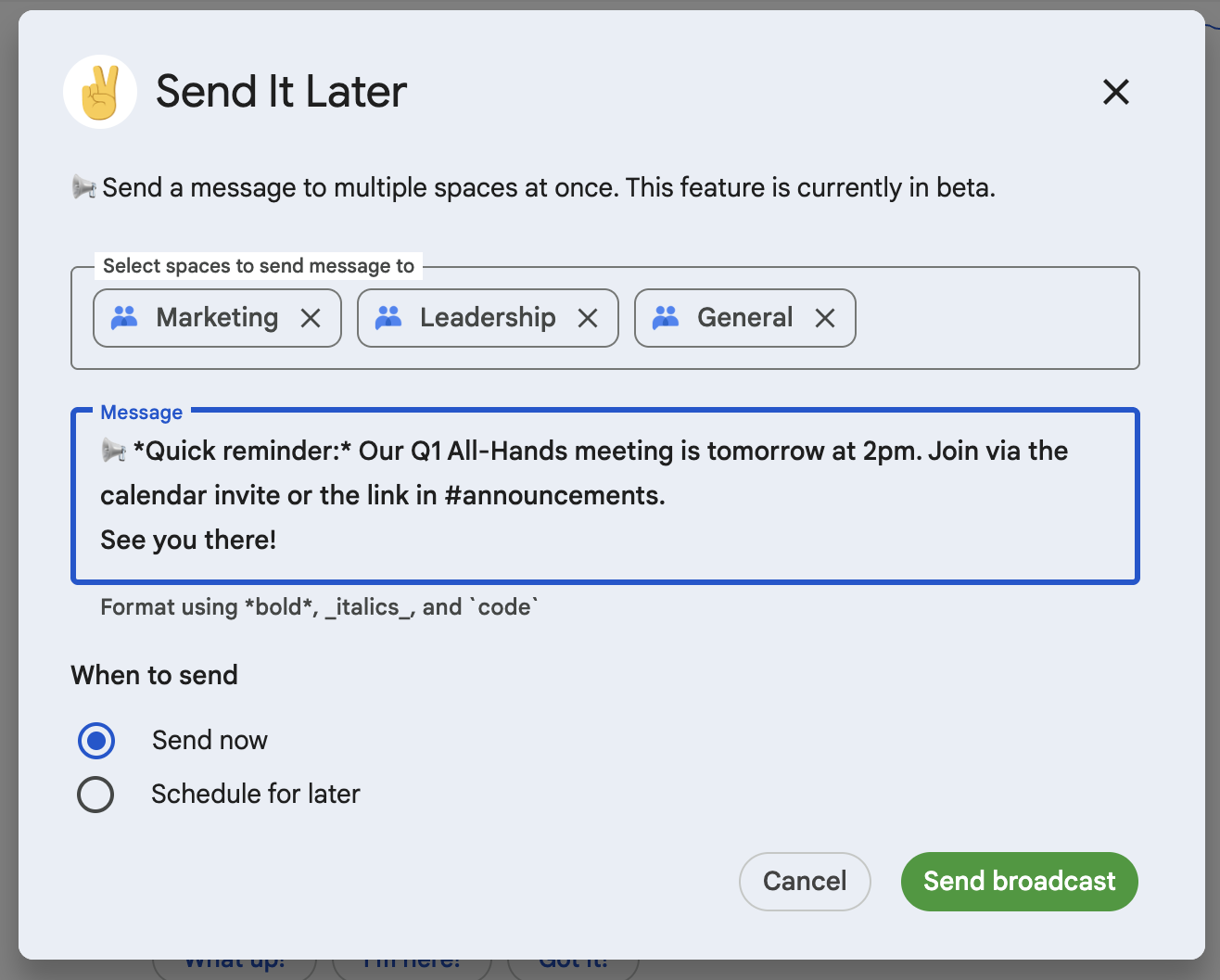
Step 3: Select Target Spaces
Choose which spaces should receive your message. You can search for spaces by name and select multiple spaces from the dropdown.
Step 4: Send or Schedule
Choose when to send your message:
- Send now - The message is delivered immediately to all selected spaces
- Schedule for later - Pick a date and time for delivery
Step 5: Track Delivery
After sending, you can check the delivery status. Use /later history to see your past broadcasts and whether each space received the message.
Add Send It Later to Google Chat
Frequently Asked Questions
Can you send a message to multiple spaces in Google Chat?
Yes, with Send It Later's broadcast feature you can send the same message to multiple Google Chat spaces at once. Type /broadcast in any space to open the broadcast dialog, select your target spaces, write your message, and send.
How do I send to many channels in Google Chat?
Use the /broadcast command to send a message to multiple Google Chat channels (spaces) simultaneously. You can select which spaces to include, write your message, and choose to send immediately or schedule for later.
Can I schedule a broadcast message in Google Chat?
Yes, when using /broadcast you can choose to send your message immediately or schedule it for a specific date and time. This is useful for announcements that should go out during work hours or at a specific moment.
Can I see if my broadcast was delivered?
Yes, use /later history to view your past broadcasts. Each broadcast shows the delivery status for every space, so you can confirm your message reached all intended recipients.
How many spaces can I send to at once?
You can select multiple spaces in a single broadcast. The space selector shows all spaces where you're a member and Send It Later is installed.
Get Started
Ready to try broadcasting? Make sure Send It Later is installed in your Google Chat workspace, then type /broadcast in any space.
For more help with Send It Later, check out our Getting Started Guide or visit our Support page.