How to Send Recurring Messages in Google Chat
Google Chat can schedule a message. It cannot repeat one. The built-in schedule send posts your message once at the time you pick, and then it is gone, so a standup prompt or a Friday report is something you end up rewriting every single week.
Send It Later adds the missing half: a repeat setting on a scheduled message, so it posts itself daily, weekly, monthly or on an interval you choose.
What Google Chat does and does not do
| Google Chat | Send It Later | |
|---|---|---|
| Schedule a message once | Yes | Yes |
| Repeat it daily, weekly or monthly | No | Yes |
| Repeat on workdays only | No | Yes |
| Custom interval, such as every 3 weeks | No | Yes |
| Stop repeating on a set date | No | Yes |
| Edit or cancel the whole series | No | Yes |
What people use recurring messages for
- Daily standup prompts - the same question every workday at 09:00, without anyone remembering to ask it
- Weekly reports - a Friday reminder to post updates before the week closes
- Monthly admin - timesheets, invoices, expense deadlines
- Recurring meeting reminders - an agenda link in the space an hour before the call
- Rotas - on-call handovers or support duty, repeating every week or two
How to set up a recurring message
Step 1: Open the scheduling dialog
In any Google Chat space where Send It Later is installed, type /later and press Enter. You can also write the whole thing in one line, for example /later Standup time, what are you working on? tomorrow at 9am, and then add the repeat in the next step.
Step 2: Write the message and pick the first send time
Enter your message and choose the date and time for the first send. Formatting works as it does in Chat: *bold*, _italics_ and `code`. Links stay clickable when the message posts.
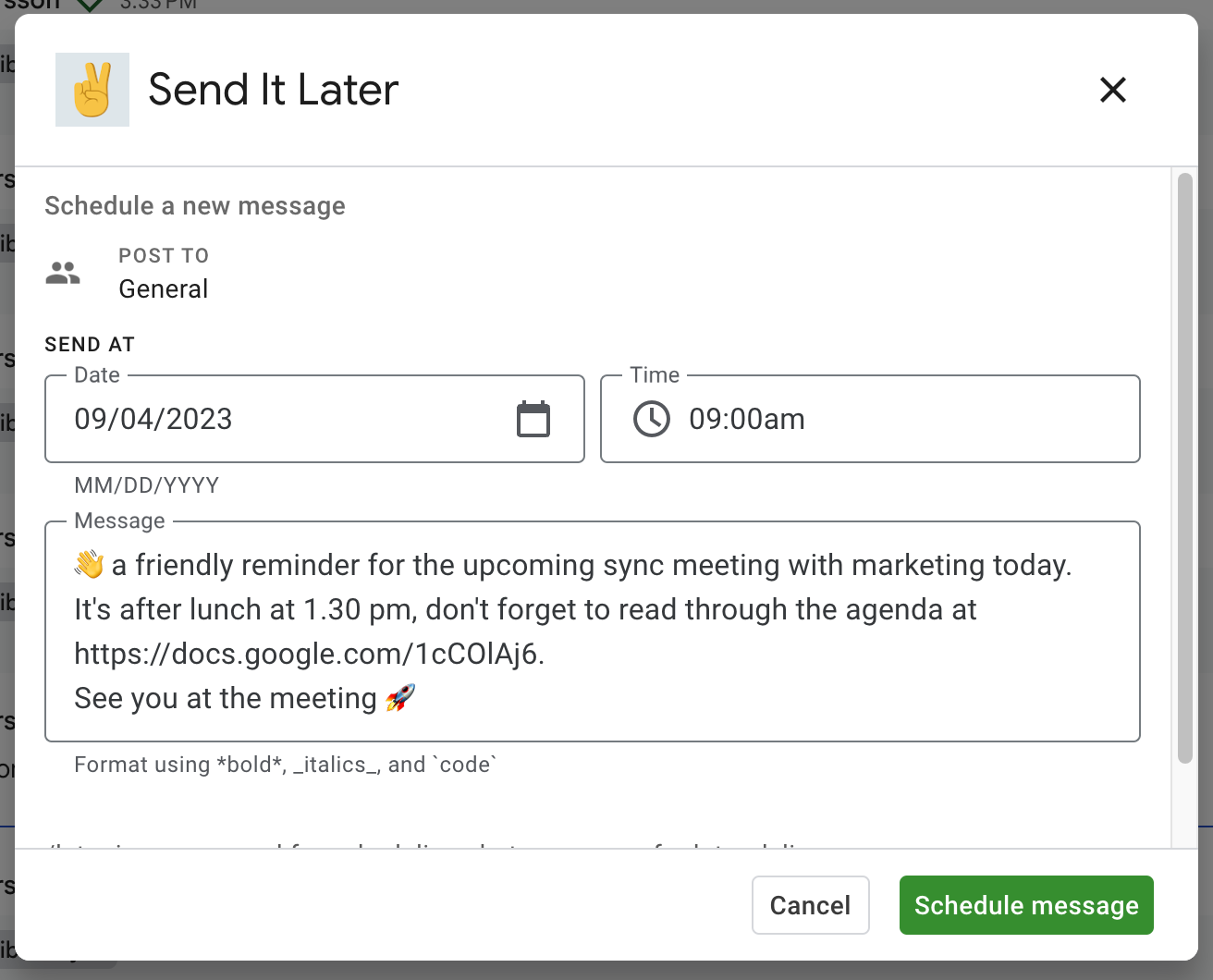
Step 3: Choose how often it repeats
Set Repeat to whichever interval you need:
- Every day
- Every workday (Mon - Fri) - skips weekends, which is usually what standups want
- Every week - same weekday and time as the first send
- Every month
- Custom - every 2 to 30 days, or every 2 to 12 weeks or months
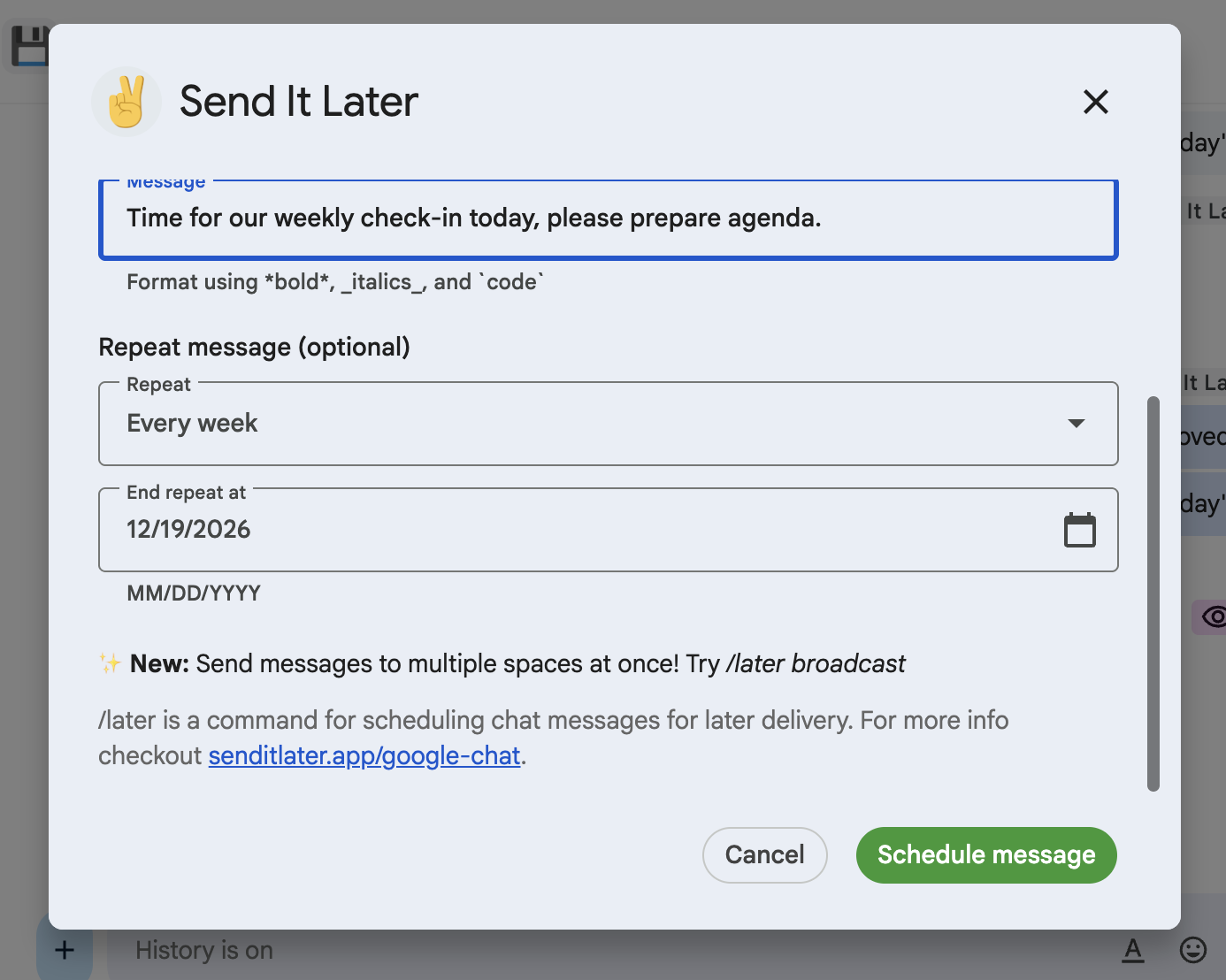
You can also set an end date under End repeat at, so the series stops on its own rather than running until someone remembers to cancel it. Leave it empty and the message keeps repeating.
Step 4: Check and change it later
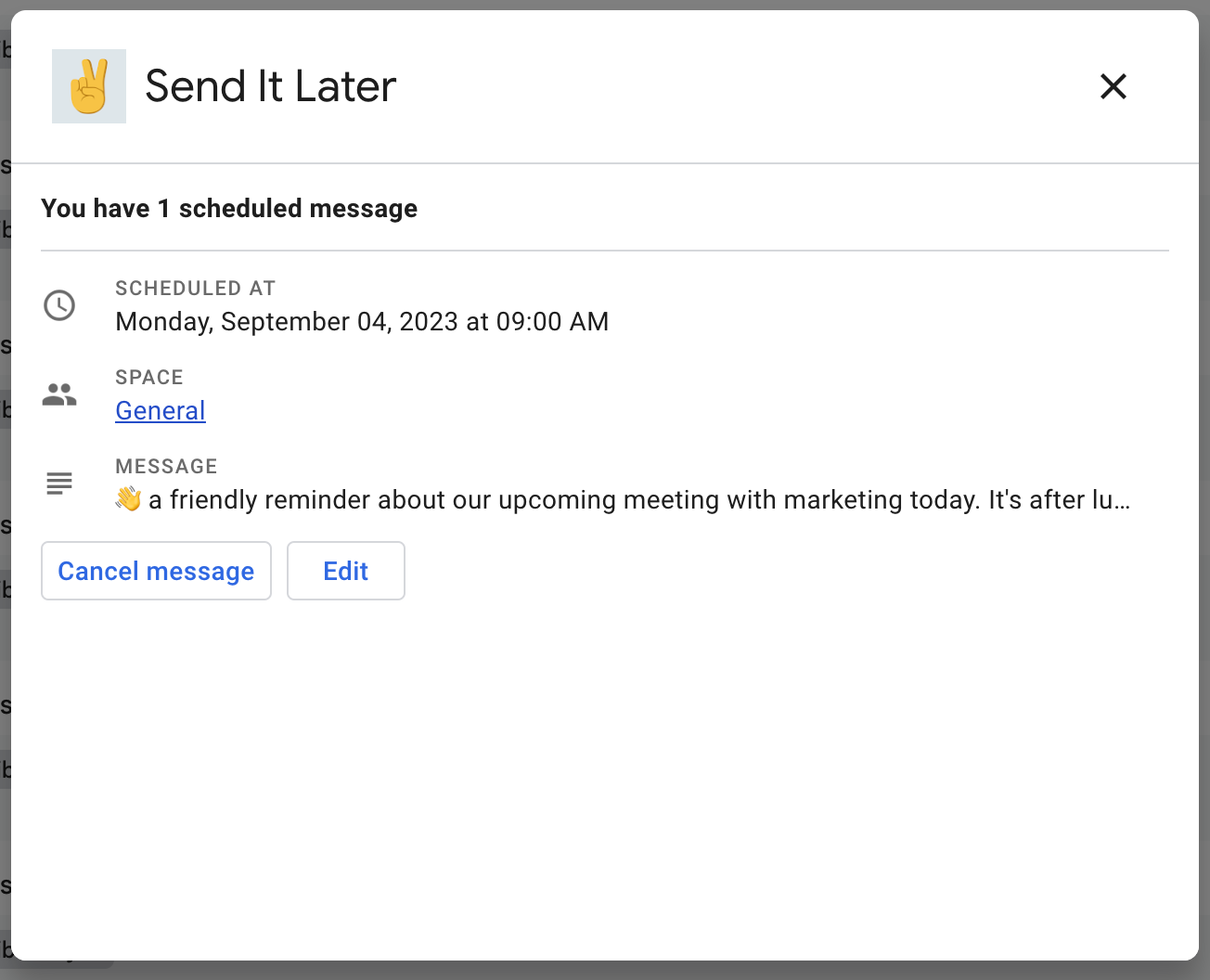
Type /later list to see everything you have queued. Recurring messages are marked with their interval and the next time they will post, and you can edit the text, change how often it repeats, or cancel the whole series from there.
Things worth knowing
- Messages come from you. Each repeat posts as a normal message from your account in the space you chose, not from a bot.
- Times follow your time zone. Set it once and the repeats keep to it.
- Editing changes future sends. Messages already posted stay as they are; the edit applies from the next one onwards.
- Mentions work. To repeat a message containing an @mention, schedule it with the mention first using the command, then open
/later listand add the repeat setting.
Try it
Send It Later installs from the Google Workspace Marketplace and works in any space you are a member of. Recurring messages are included in the free trial, so you can set up a standup prompt and see it fire before deciding anything.
Scheduling one-off messages instead? See how to schedule and repeat messages in Google Chat. Sending the same announcement to several spaces at once? See how to send a message to multiple Google Chat spaces.